Integrating KoboToolbox Data into mWater - Quick Guide
This guide shows you how to connect your KoboToolbox survey data to mWater using the mWater Integrator, no coding required. Once set up, your KoboToolbox data will flow into a table in mWater automatically on a schedule you choose.
To bring your survey designs into mWater from Kobo, see this guide.
Step 1: Create a Named Export in KoboToolbox
In KoboToolbox, you need to create a "named export", a saved export configuration that generates a permanent, refreshable data link.
Open your KoboToolbox project and go to DATA -> Downloads
Adjust your export settings as needed (format, language, columns)
Click Advanced options to apply any filters
Click Save selection as ... and give it a name (e.g. "mWater Sync - WASH Survey")
Click Export to save
If your form has repeat groups, use XLSX format; repeat groups are not included in CSV exports.
Step 2: Retrieve Your Synchronous Export Link
Once your named export is saved, retrieve its live URL by opening this address in a new browser tab, replace the placeholders with your own values:
Project Asset UID: found in your browser's URL bar when viewing the project
Open the URL above in your browser
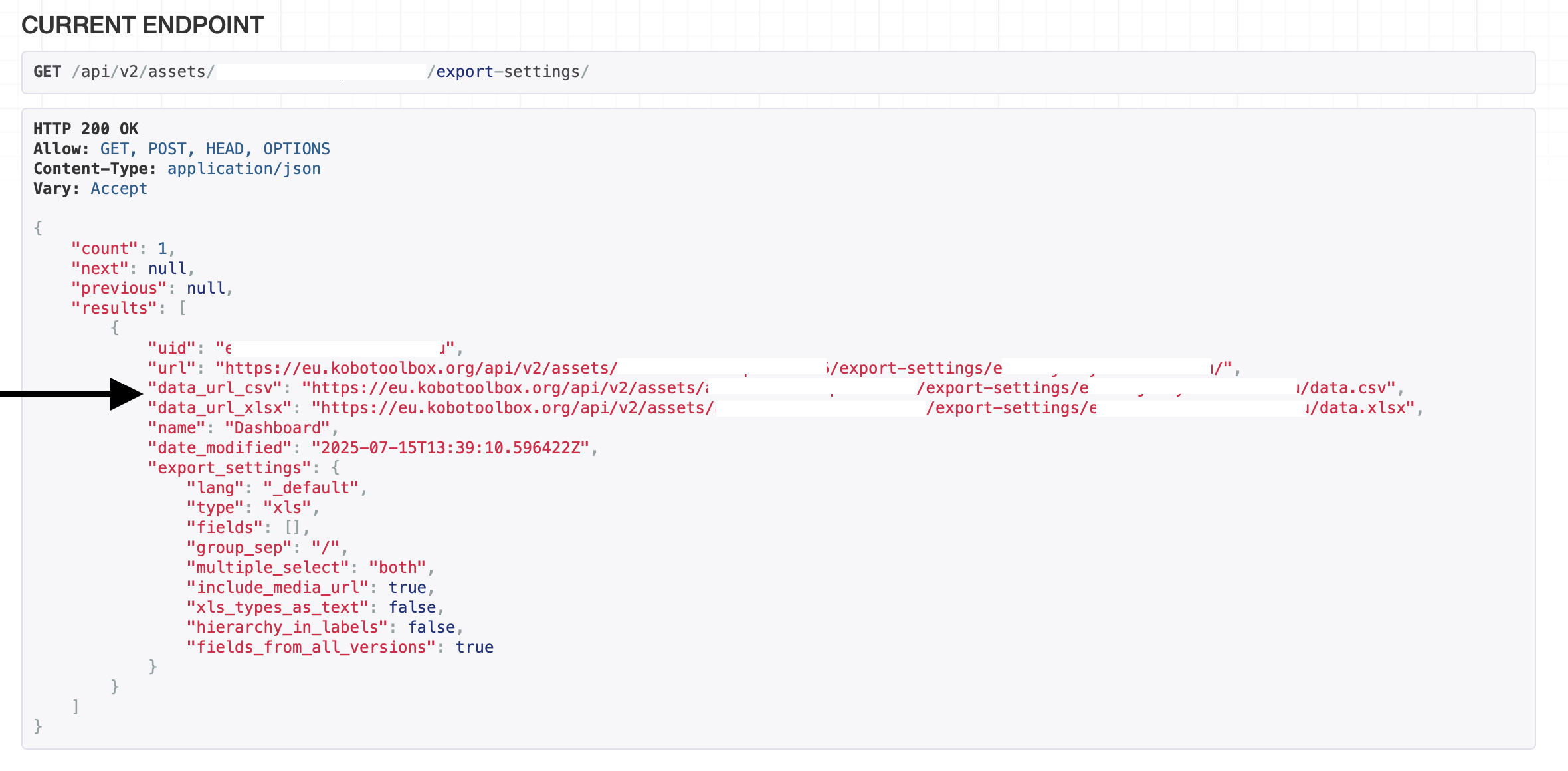
Find the export entry that matches the name you created in Step 1
Copy the "data_url_csv" or "data_url_xlsx" value, this is your synchronous export link
KoboToolbox refreshes synchronous exports every 5 minutes, so mWater will always receive near-real-time data
Step 3: Get Your KoboToolbox API Key
If your KoboToolbox project is private (recommended for most surveys), you need an API Key so mWater can authenticate when pulling data.
In KoboToolbox, click your username at the top right > Account Settings
Go to the Security tab
Copy the API Key shown. If none exists, click Generate New Key first
If your project is public ("Anyone can view submissions" is enabled under SETTINGS > Sharing), you can skip this step entirely.
Treat your API Key like a password, never share it publicly. mWater stores it encrypted and separately from your integration logic.
Step 4: Set Up the Import in mWater
With your export URL ready, open the mWater Integrator and describe what you want, the AI builds the integration for you.
Go to Manage > Integrations
Click + New Integration, then choose Import Data
In the AI assistant chat, describe your data source in plain language. Example: "Import WASH survey data from KoboToolbox. The data URL is: [paste your export URL here]. Use API Key authentication with token: [your KoboToolbox API Key]." Your KoboToolbox API Key is found under Account Settings > Security tab in KoboToolbox
The AI will inspect the URL, map the columns, and show you a preview of the table structure in mWater
Review the preview. If any columns need renaming or removing, just type your correction in plain language.
Step 5: Set a Schedule and Activate
Click Next to proceed to the schedule settings
Choose how often mWater should pull data from KoboToolbox: Manual / Daily / Weekly / Monthly
Click Save & Run Import. mWater will run the first sync immediately so you can verify the data
Done! Your KoboToolbox data will now flow into mWater automatically. You can use it to build dashboards, create indicators, and share with your team.