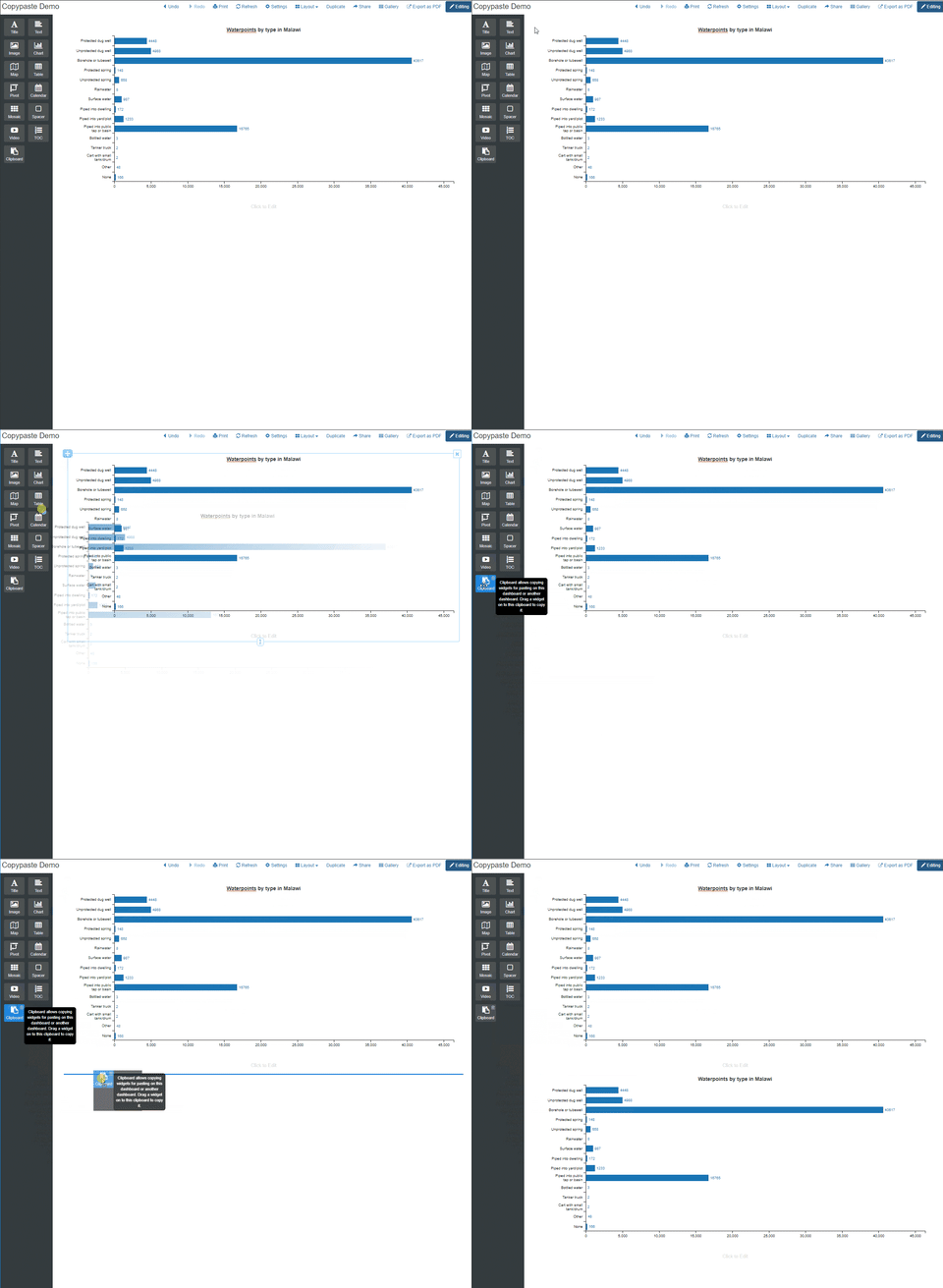
You can copy widgets and paste them anywhere in the same dashboard, or across to another dashboard or console. This is done through the clipboard widget on the palette on the left side of a dashboard in editing mode.
Copying and Pasting
You can copy any widget (chart, map, pivot table etc.) in any dashboard which you are an admin of with these steps:
Copy
1) Enter Edit mode from the top right
2) Drag the widget from the top left corner where the move control is onto the Clipboard element of the palette on the left.
3) Release the widget over the clipboard.
Paste
The widget is now copied on the clipboard. You can paste a widget now by dragging the clipboard widget onto the canvas. You can position it similarly to any other widget.
The clipboard is shared between any tabs and windows you have open. This means that you can copy a widget on the clipboard in one dashboard and paste it in another. Once you have pasted the widget on the clipboard, just drag it from the clipboard on the target dashboard or console.
To copy and paste a widget drag it to the Clipboard widget in the palette
Drag widgets from the top left corner to the Clipboard
Note that the most recent copied item stays on the clipboard indefinitely. To replace it, drag another widget on the clipboard. You can clear the clipboard by clicking the trashcan on the top right of the clipboard widget.
The clipboard transfers content across dashboards and consoles
Adding data sources
Whilst the pasting of a widget brings over the logic and configuration of that widget, you as the admin need to first make sure that the dashboard has the relevant data sources. Public data sources such as sites are not affected by this but surveys and issues are.
If the data sources are not present in the dashboard, the clipboard won't let you paste the contents to the target dashboard. Instead you will see a message.
The clipboard widget will display a warning if the target dashboard is missing data sources
To add a new data source, you need to select one in a widget. Follow these steps:
1) Drag a new Chart widget onto the dashboard.
2) Edit the widget and select a chart type.
3) In the Data Source section, select the data source(s) you are missing in the dashboard.
When you have added a data source like this, it will remain associated with the dashboard even if the widget in question is deleted. To remove data sources you need to remove them from within a widget.